
How to install and activate an eSIM
Install an eSIM on iPhone
Step 1 of 12
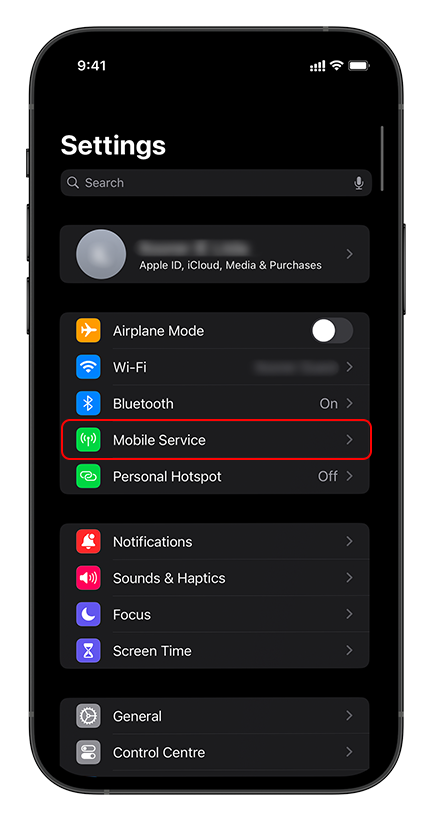
On Settings > Tap Connections.
All steps as text
Install an eSIM on iPhone
- On Settings > Tap Connections.
- Select the appropriate network option.
- Tap on eSIM Settings.
- Press Add Cellular Plan.
- Scan the QR code provided.
- Wait for the plan to download.
- Confirm the installation details.
- Review the plan options.
- Select your preferred plan.
- Confirm your selection.
- Finalize installation settings.
- Installation complete. Enjoy your connection.
Activate an eSIM on iPhone
- Follow the activation guide to enable your eSIM.
- Confirm your device details.
- Tap on Activate eSIM.
- Verify your network connection.
- Wait for the activation process to start.
- Review the activation instructions.
- Confirm activation details.
- Select your data plan.
- Verify your plan details.
Install an eSIM on Android
- On Settings > Go to Connections.
- Open Network & Internet settings.
- Tap on Mobile Network.
- Select Add Carrier.
- Scan the provided QR code.
- Wait for the carrier to be added.
- Confirm the plan details.
- Review your network settings.
- Select your data plan.
- Confirm your selection.
- Finalize installation settings.
Activate an eSIM on Android
- Follow the steps to activate your eSIM.
- Confirm your device settings.
- Tap on Activate eSIM.
- Verify your network connection.
- Wait for the activation process to start.
- Review the activation instructions.
- Confirm activation details.
- Select your data plan.
- Verify your plan details.