How to activate an eSIM on iPhone
Turn on a travel eSIM and its mobile data on an iPhone, in 9 steps with a screenshot of each.
Step 1 of 9
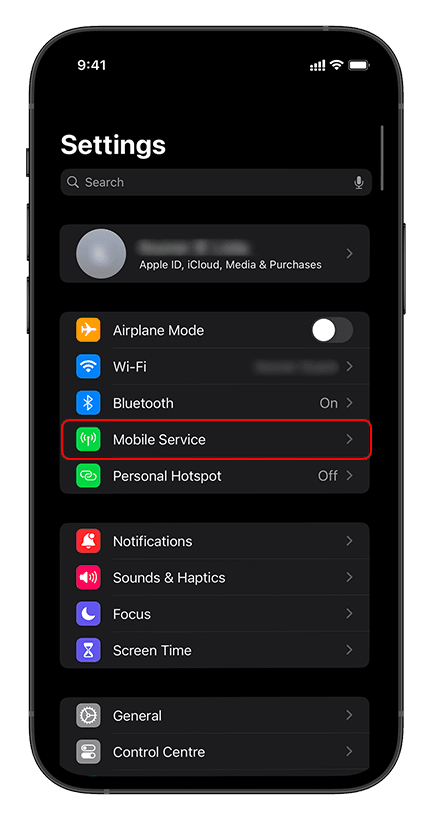
When you arrive, open Settings and tap Mobile Service (Cellular on some iPhones).
Step 2 of 9
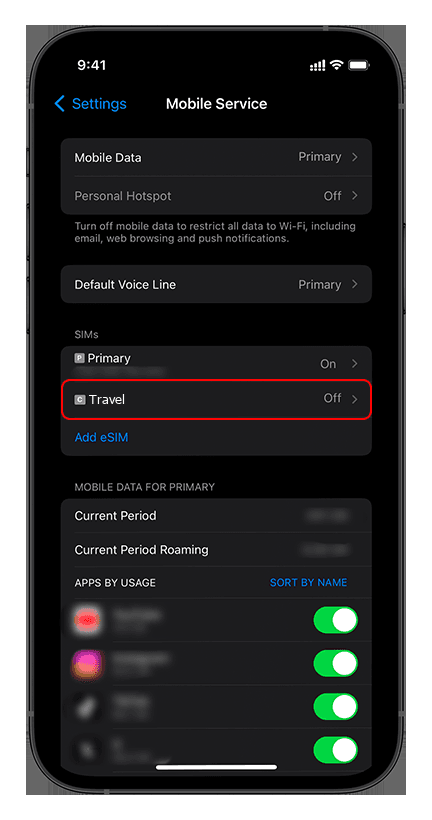
Under SIMs, tap your travel eSIM. It shows Off.
Step 3 of 9
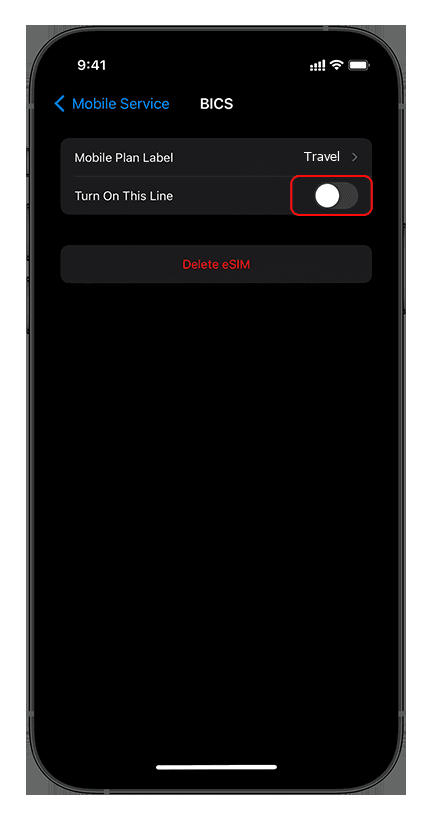
Switch on Turn On This Line.
Step 4 of 9
The line is on. Go back to Mobile Service.
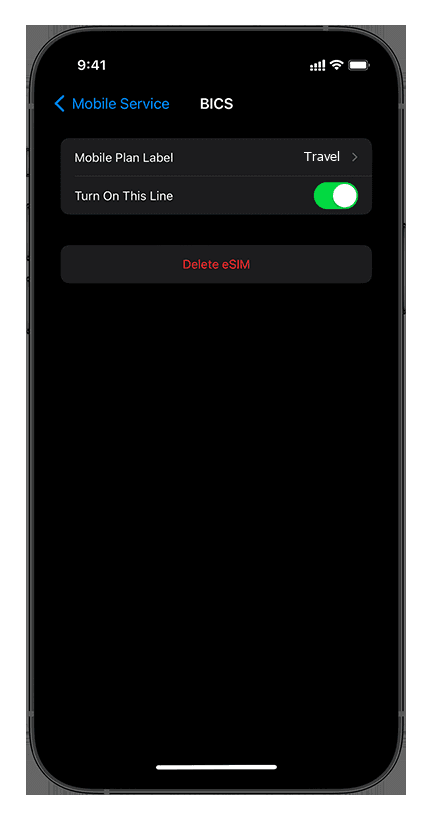
Step 5 of 9
Tap Mobile Data.
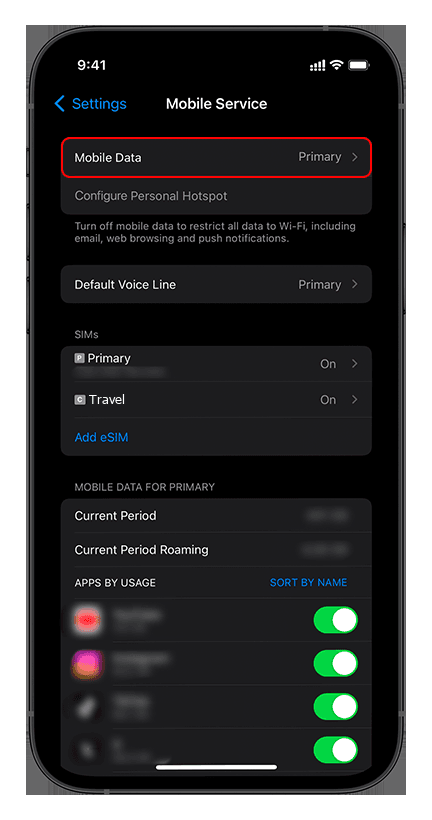
Step 6 of 9
Choose your travel eSIM. Leave Allow Mobile Data Switching off, so your own SIM isn't used for data abroad.
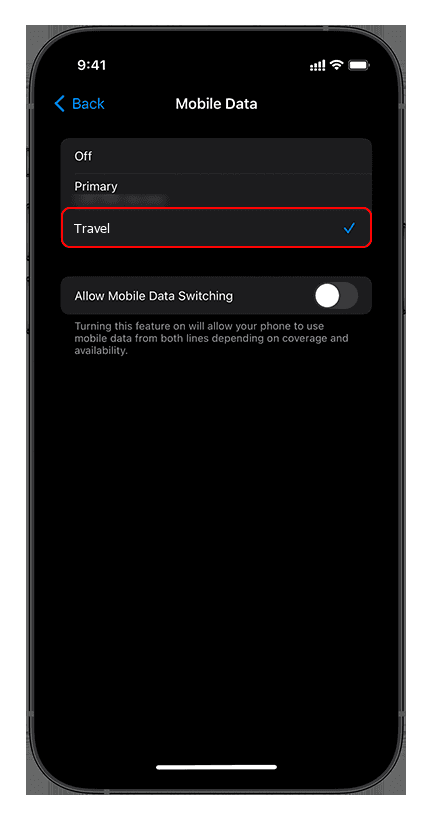
Step 7 of 9
Back in Mobile Service, tap your travel eSIM again.
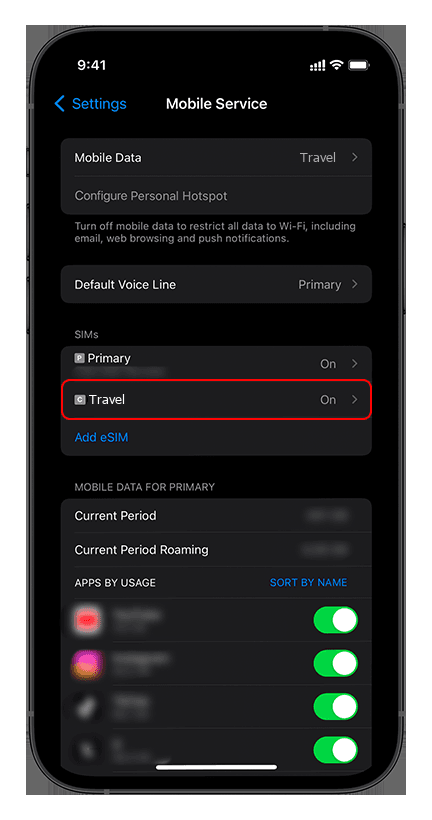
Step 8 of 9
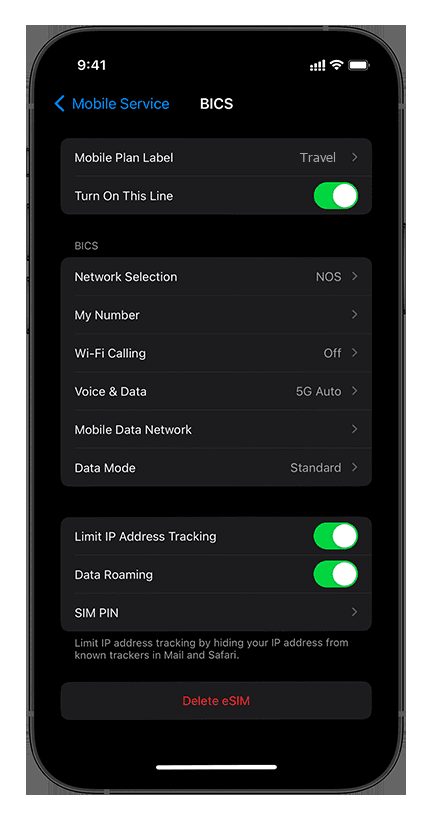
Switch on Data Roaming. Abroad, the travel eSIM connects through it, at no cost beyond your plan.
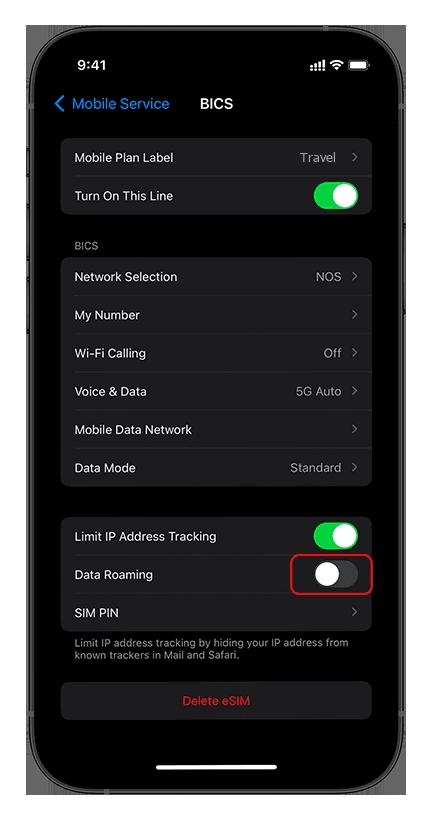
Step 9 of 9
Data Roaming is on and the eSIM connects to a local network. Keep data roaming off for your own SIM.